Audio generation UI
The audio generation UI is the browser app for creating recordings. It runs the same steps as the command line and shows them in plain language.
isa9000 audio-generation-ui [--port 8790] [--no-browser]
Run it from the folder that holds isa9000.toml, or pass --config before audio-generation-ui. It answers only on 127.0.0.1. Its browser tab shows the run’s status, for example ● Recording the audio · Audio generation UI, and its icon carries a red record badge, so it is easy to tell apart from the presentation website.
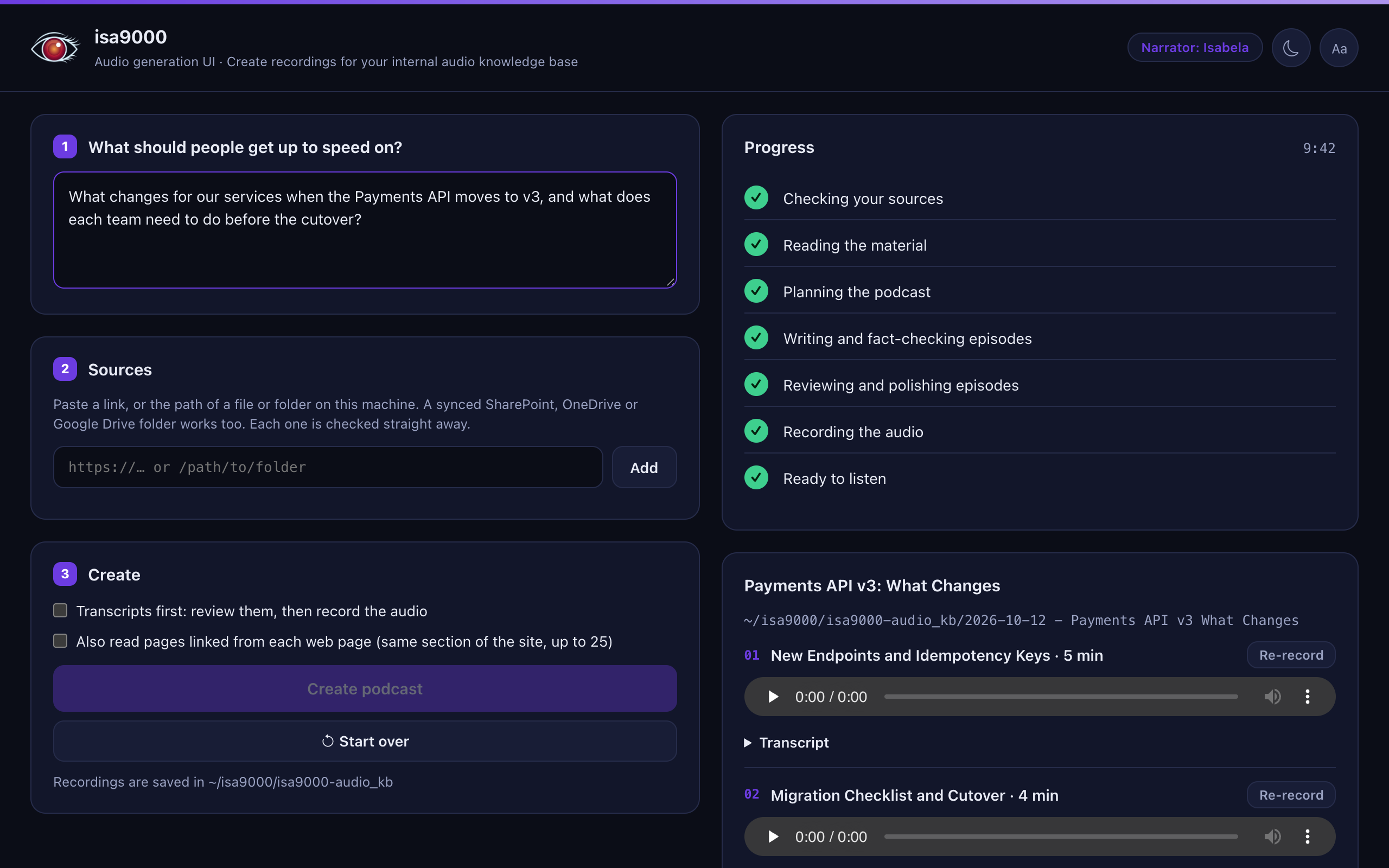
Create a podcast
- Ask: describe what people should get up to speed on. The request steers the plan; the sources decide the facts.
- Sources: add links, files or folders, including synced SharePoint, OneDrive or Google Drive folders. Each one is checked as you add it. Access refused means it needs a sign-in: use a synced folder or an exported copy.
- Create: tick Transcripts first to review before recording, or Also read pages linked from each web page to read up to 25 more pages from the same section of a site.
The progress card follows the run: checking, reading, planning, writing and fact-checking, reviewing and polishing, recording, ready.
| Button | What it does |
|---|---|
| Stop | Ends the run at once. |
| Retry | Runs a stopped or failed run again. A written podcast only records its missing episodes. |
| Start over | Clears the request, sources and results. Finished podcasts stay on disk. |
| Transcript | Shows the episode’s transcript under it, to read and correct before you record. Save transcript keeps your changes; they skip the fact-check, so check them yourself. |
| Record audio | Records the episodes that have no audio: after Transcripts first, or after a review. |
| Re-record | Records one episode again, for example after you corrected its transcript. |
| Download all | Saves the podcast as a ZIP: MP3s, transcripts, cover and podcast.json. |
To change the text before any audio is made, tick Transcripts first, edit and save the transcripts, then press Record audio.
A podcast below the quality bar is not recorded: the progress card says Needs review and why. Claims the fact-check could not confirm, and recordings worth a listen, are shown under their episode.
Settings
The gear at the top opens Settings: the narrator’s name and voice, the greeting and endings spoken in every episode, how to say names the narrator gets wrong, for example Nginx as engine x, and the quality: Quick draft, Standard or Thorough. Save writes them to isa9000.toml, keeping its comments, and the next podcast uses them.
Presentation website
Build the presentation website builds it on this computer from every recorded podcast. Nothing is uploaded. Open it to listen and check, then Download it as a ZIP and upload the files to your company’s web server or storage. Build it again after every change; see Presentation website and publishing.
The sun and moon button switches light and dark; Aa switches to a dyslexia-friendly font.